Complete user guide
Medical College Management Platform
Always up to date — updated 2026-10-05.
What's new
- 2026-10-05User guide inside the appThis guide now lives in the app, updates itself when modules change, and can be downloaded as a PDF at any time.
- 2026-10-05Easier to find on GoogleThe home page, user guide and certificate check now describe themselves clearly to search engines and show a proper picture when shared on WhatsApp or Facebook. Sign-in pages are kept out of search results.
Welcome
What this software is and who it is for
The Medical College Management Platform runs a whole medical college in one place — from the first admission form to the final degree, and every staff member, fee voucher, exam and hospital rotation in between. It is built for Pakistani medical, dental, nursing and allied-health colleges, and many colleges can use it, each completely separate from the others.
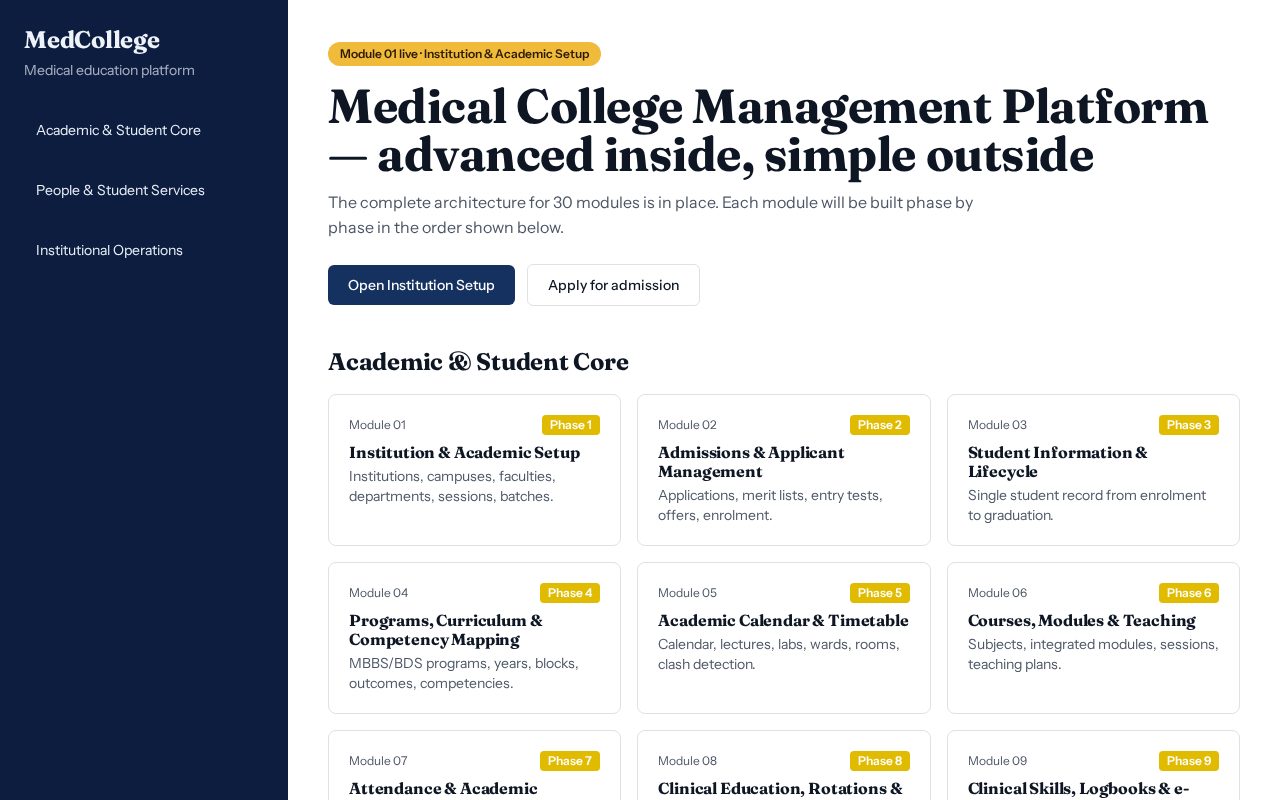
- ✓Connected modules covering academics, people, finance and operations
- ✓Separate portals for office staff, teachers, students and applicants
- ✓Works on phone, tablet and computer — and keeps working when the internet drops
- ✓Every important change is recorded in a permanent history
- ✓Nightly checked backups, safe restore and smart spreadsheet import
- ✓A 10-day free trial for every new college
Signing in
Four doors, one for each kind of user
| Who | Page | How |
|---|---|---|
| Office staff & admins | /auth | Email + password, or Google |
| Students | /student-login | Student number + password — no email needed |
| Teachers & staff | /staff-login | Staff number + password |
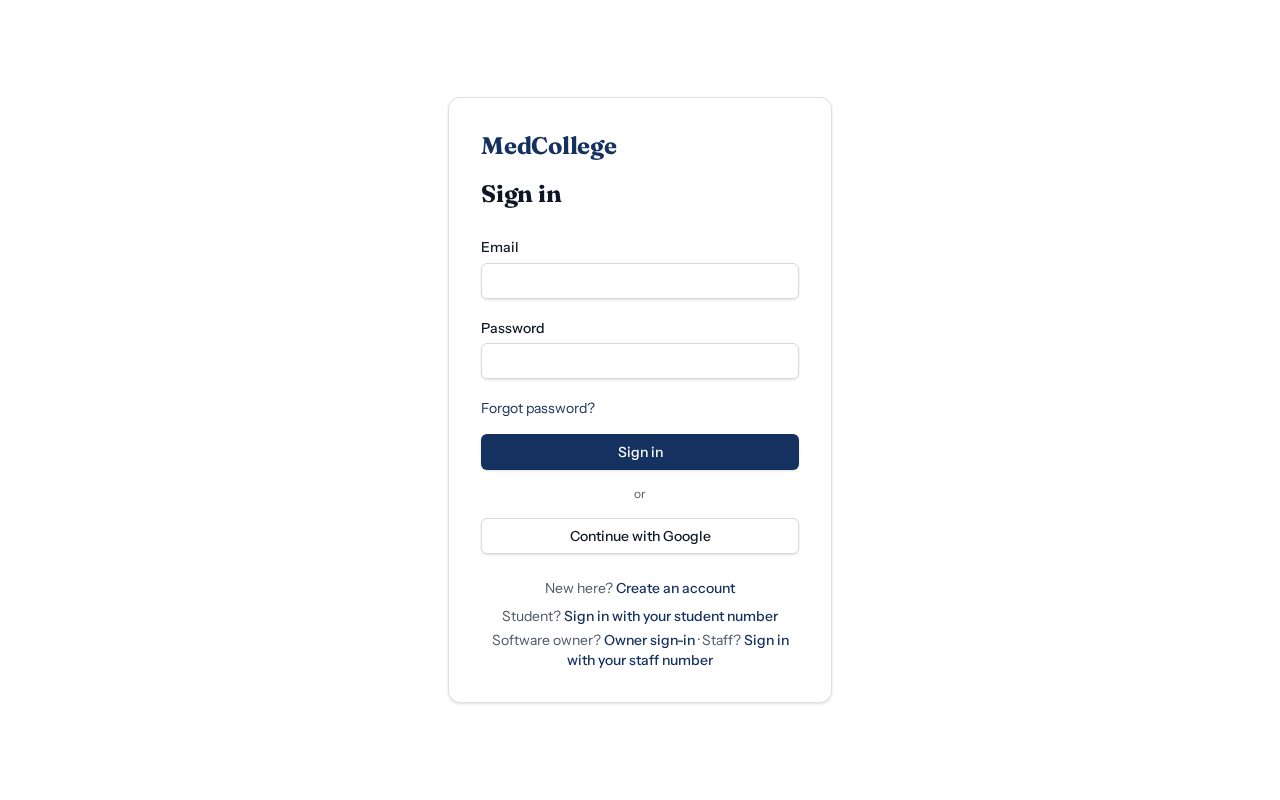
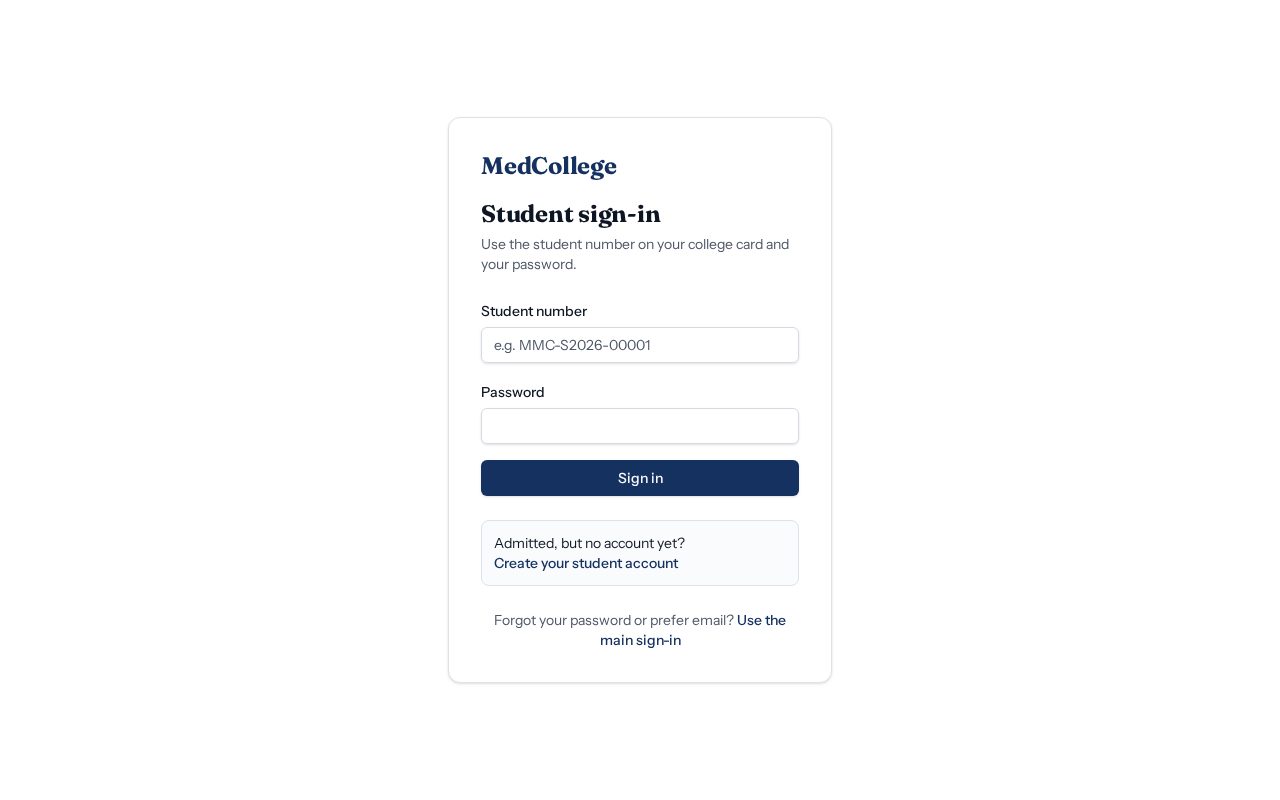
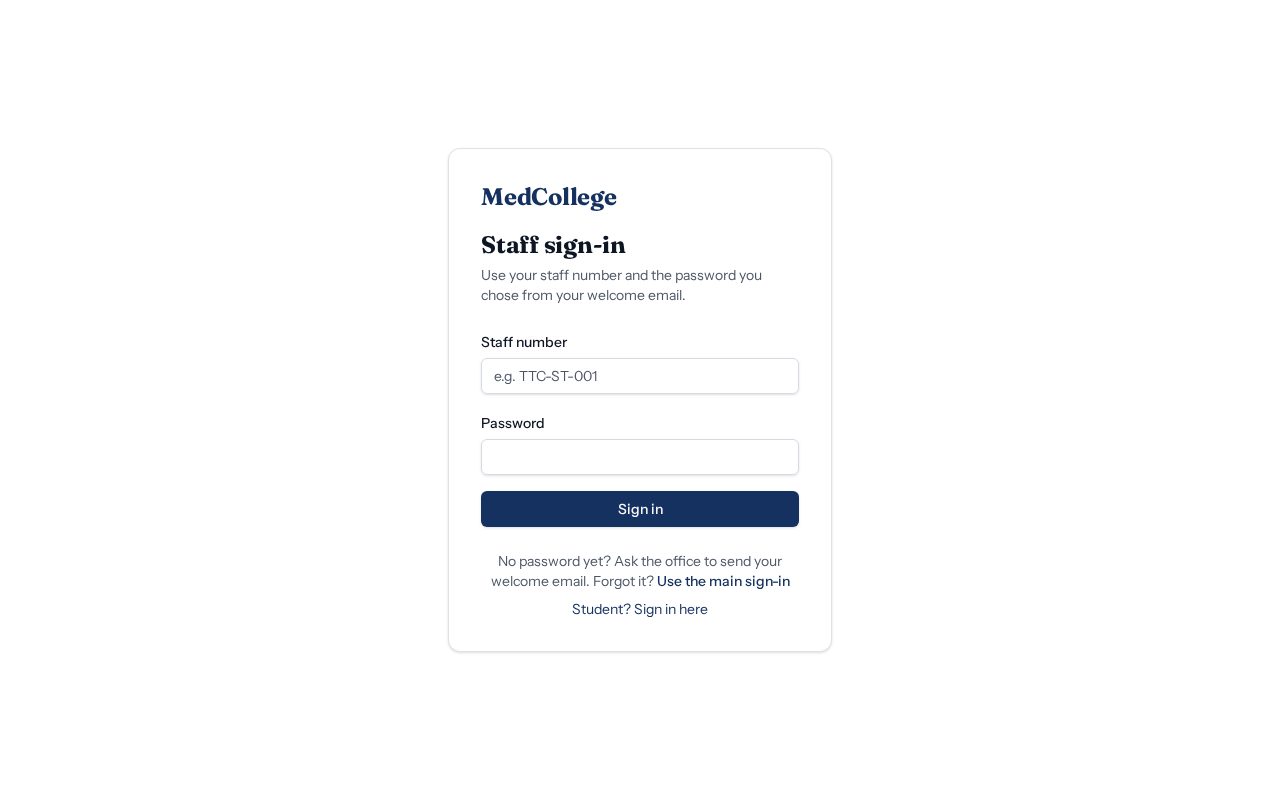
- 1Click Forgot password? on the sign-in page.
- 2Enter your email. A reset link is sent.
- 3No email access? Enter your email together with your CNIC to reset it without email.
Applying for admission
For new applicants
- 1Open /apply from the home page and create your account with your email.
- 2Choose the admission cycle and programme, then fill in every section of the form.
- 3Upload the documents asked for and submit.
- 4Track your status on the same page: under review, merit list, offer.
- 5Accept your offer. Your student portal is then filled in for you automatically.
Working offline
When the internet drops
- ✓Pages you have opened stay readable offline
- ✓Changes made offline are sent automatically when you are back online
- ✓A notice appears only when you are truly offline and saving changes
Verifying certificates
For employers and other institutions
Anyone can open /verify and enter the code printed on a certificate or transcript to confirm it is genuine.
Good habits & help
Stay safe and get support
- ✓Never share your password; each person has their own account
- ✓Press Back up now before big changes
- ✓Write clear reasons — they are kept in the history
- ✓For help, contact the software owner at fazlullahazaad@gmail.com
All 30 modules
A live map of everything switched on
The software covers the whole college in connected parts: admissions, studies and exams, clinical training, fees, hostels, transport, library, staff and quality — each person sees only the parts that concern them.